
How do I add a customer by hand?
Tap the green + button, then New job. Type the address and pick it from the list, add the suburb and price, choose the week and how often, then tap Add Job. It takes about 30 seconds.
-
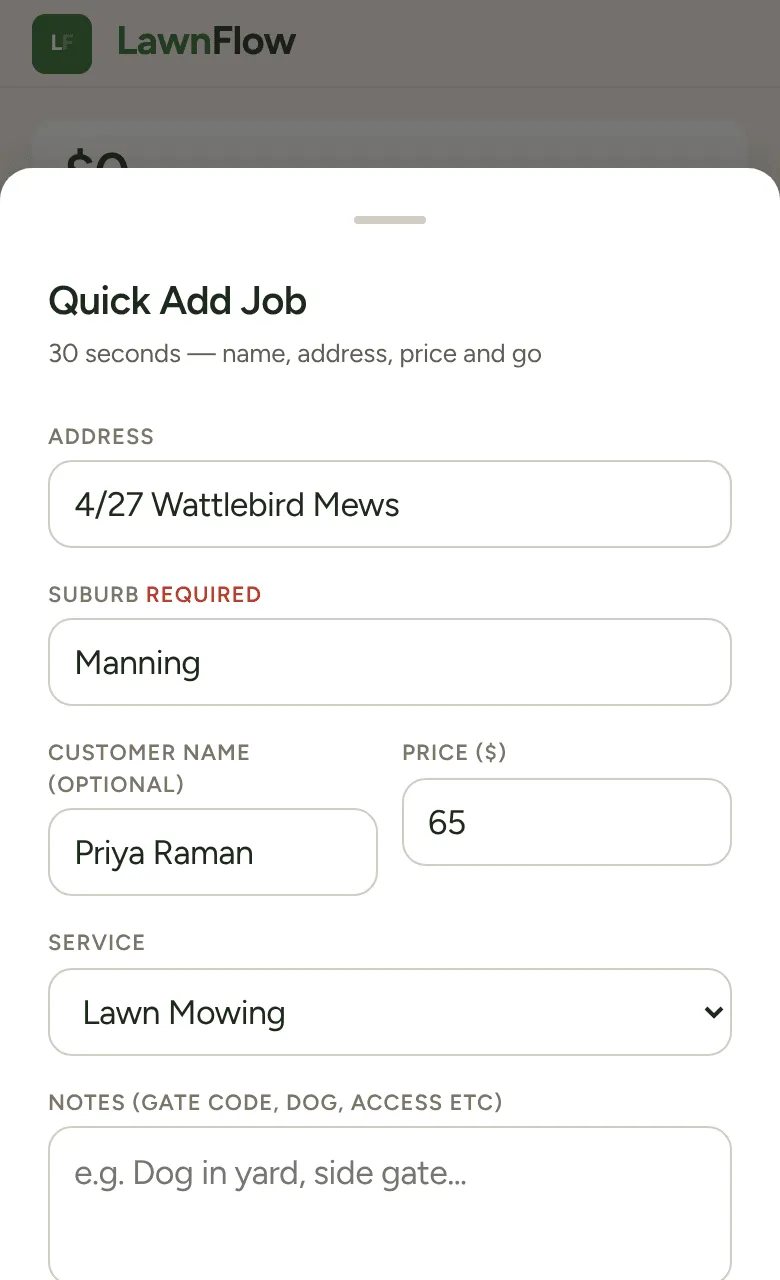
Tap the green + at the bottom of the screen, then New job. Quick Add Job opens.
-
In Address, start typing and pick the address from the list Google shows. Picking it puts a pin on the map, so the job can be routed. If you don’t pick one, LawnFlow says “Pick the address from the list”.
-
Fill in Suburb (required), Customer Name (optional) and Price ($). Choose the Service, and add any notes: gate code, dog, access.
-
Under When?, pick the week it’s due. (Why a week and not a date?)
-
Under Recurring?, pick how often you go (every week, 2 weeks, 4 weeks and so on) or One-off.
-
Under Payment, pick Cash or Invoice. For invoice, add their Invoice Email.
-
Tap Add Job.
Units and flats: type 5/18
Section titled “Units and flats: type 5/18”For a unit, type it the usual way, like 5/18 Example St, then pick the street from the list. LawnFlow keeps your unit number on the address.
If the list offers a different building (say 18/5 instead of 5/18), LawnFlow won’t take it. It tells you the two numbers don’t match and puts back what you typed. Pick the right one.
Google can’t find the address?
Section titled “Google can’t find the address?”New streets and rural roads sometimes aren’t in Google’s list. After LawnFlow asks you to pick from the list, a Can’t find it? Save without a map pin link appears under the address. Use it, and the job saves without a pin. It won’t be part of a route until you fix the address from the customer’s page.