
How do I plan my week?
Open the Week tab, tap + Add / edit on a day, then tap the customers you’ll do that day. Tap Done when the day looks right. Each morning, that day’s jobs are waiting on Today.
-
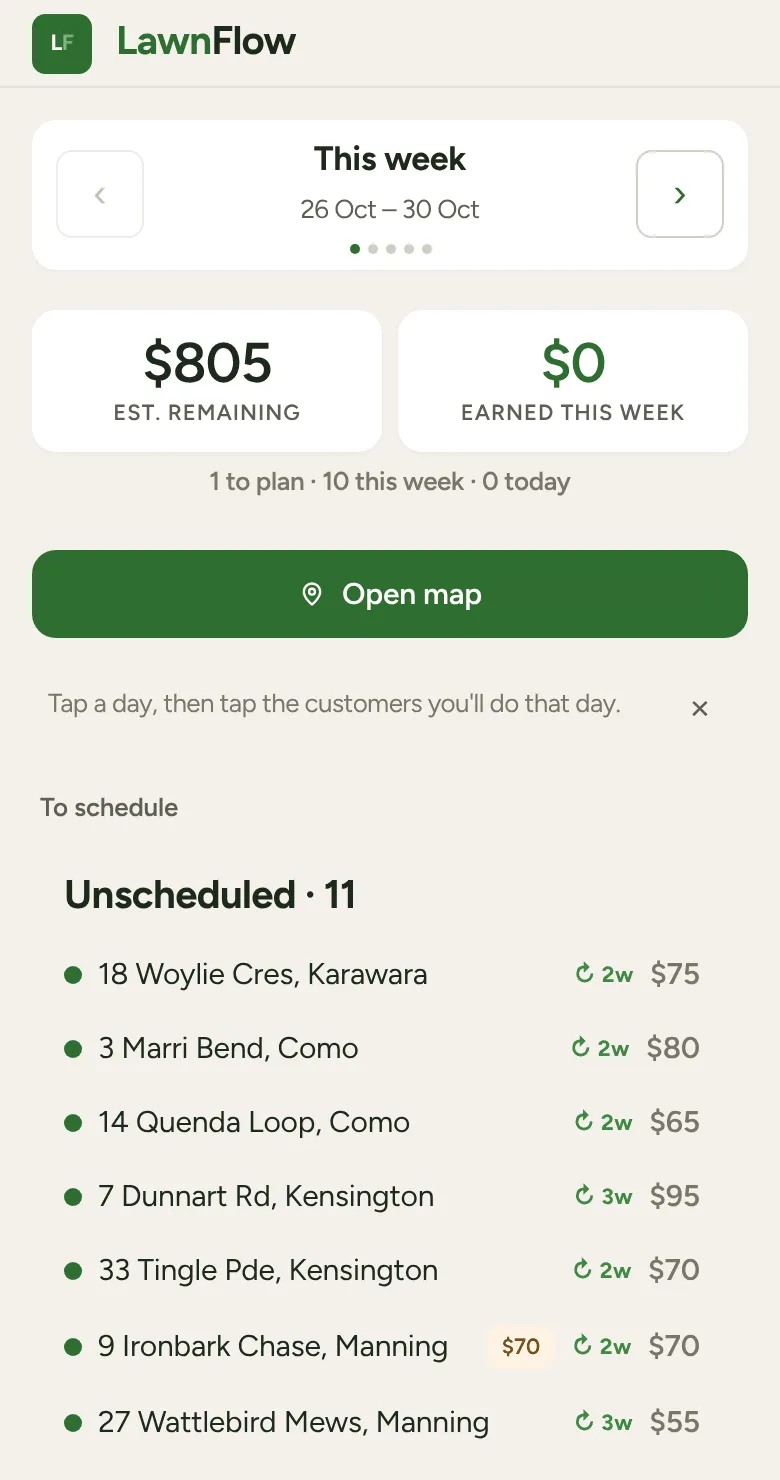
Open the Week tab. At the top, under To schedule, is Unscheduled: everyone due this week (and anyone overdue) who isn’t on a day yet.
-
Scroll down to the days of the week. Tap + Add / edit on the day you want to fill.
-
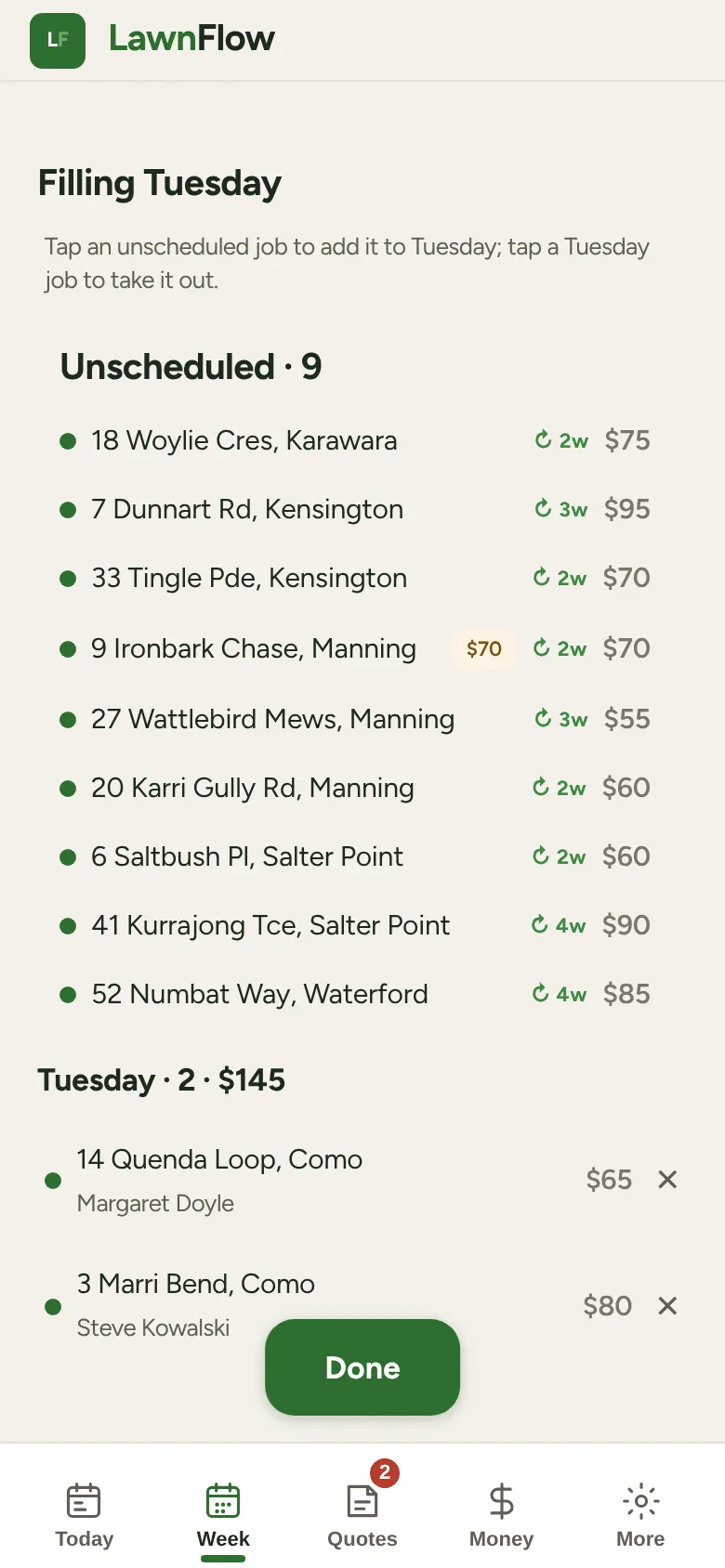
The screen changes to Filling that day. Tap a job in the unscheduled list to put it on the day. Tap a job on the day to take it off again.
-
Tap Done. Do the same for the other days.
On the morning of each day, its jobs move onto Today by themselves, ready to route. Anything you didn’t get to stays on the week, so you can move it to another day.
Your very first week
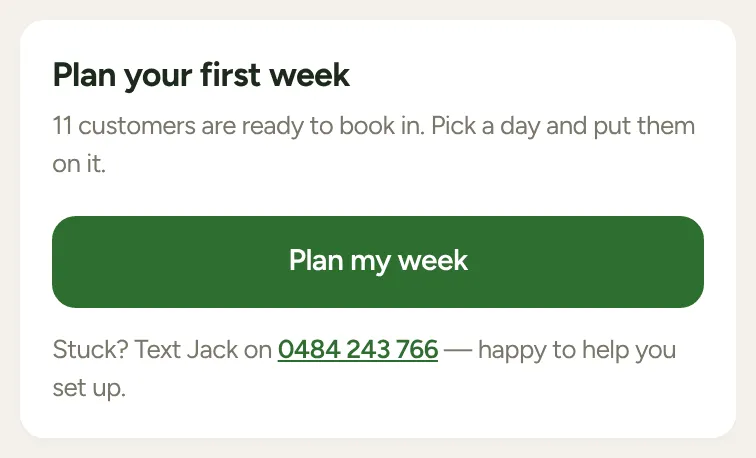
Section titled “Your very first week”On a new account, Today shows a Plan your first week card saying how many customers are ready to book in. Tap Plan my week to go straight to the Week tab. The Week tab also shows a tip, “Tap a day, then tap the customers you’ll do that day.”, until you close it with the ✕.
Good to know
Section titled “Good to know”- Tapping a job without filling a day puts it straight on today’s run. Tap it again to take it off.
- Press and hold a job to open the customer’s page.
- Open map shows the week’s jobs on a map, coloured by day, so you can keep each day’s jobs close together.
- Planning ahead: tap › at the top to plan next week and the weeks after the same way.