
How do I put LawnFlow on my iPhone home screen?
Open LawnFlow in Safari, tap Share, then tap “Add to Home Screen”. From then on, open it from the new icon. It opens full screen like any other app.
LawnFlow isn’t in the App Store. It’s a web app you keep on your home screen, so there’s nothing to download and it updates itself.
-
On your iPhone, open Safari and go to app.lawnflow.com.au. Sign in.
-
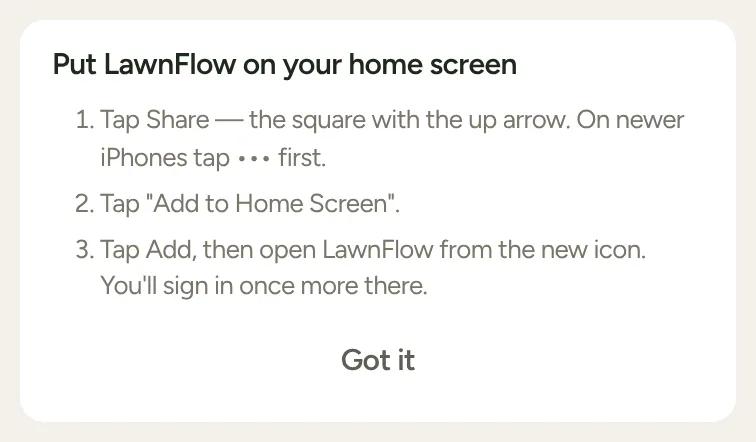
Tap Share: the square with the arrow pointing up, at the bottom of the screen. On newer iPhones, tap ••• first, then Share.
-
Scroll down and tap Add to Home Screen, then tap Add.
-
Close Safari and open LawnFlow from the new icon. Sign in once more there. The icon keeps its own sign-in.
While LawnFlow is open in a Safari tab, it shows these same steps at the top of the screen. Tap Got it to hide them.
Why Safari?
Section titled “Why Safari?”Other browsers like Chrome or Brave will open LawnFlow and it works there too. But LawnFlow is built and tested to run from the home screen, added from Safari. That’s how it’s meant to be used day to day. If you started in another browser, open app.lawnflow.com.au in Safari and add it from there.