
How do I bring my customers in from Xero?
Tap More, then Xero, then Connect to Xero. Once you’re connected, tap Import customers from Xero. Your Xero contacts come in, and you set each one up the same way as a spreadsheet import.
-
Tap More, then Xero, then Connect to Xero.
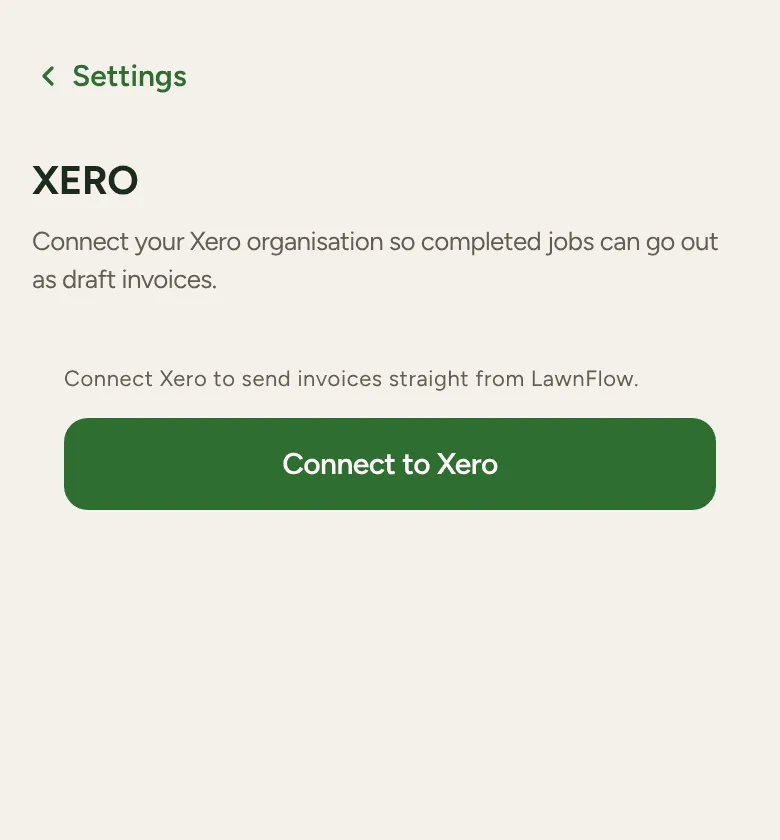
-
Xero opens. Sign in to Xero, pick your organisation and allow access. You come straight back to LawnFlow.
-
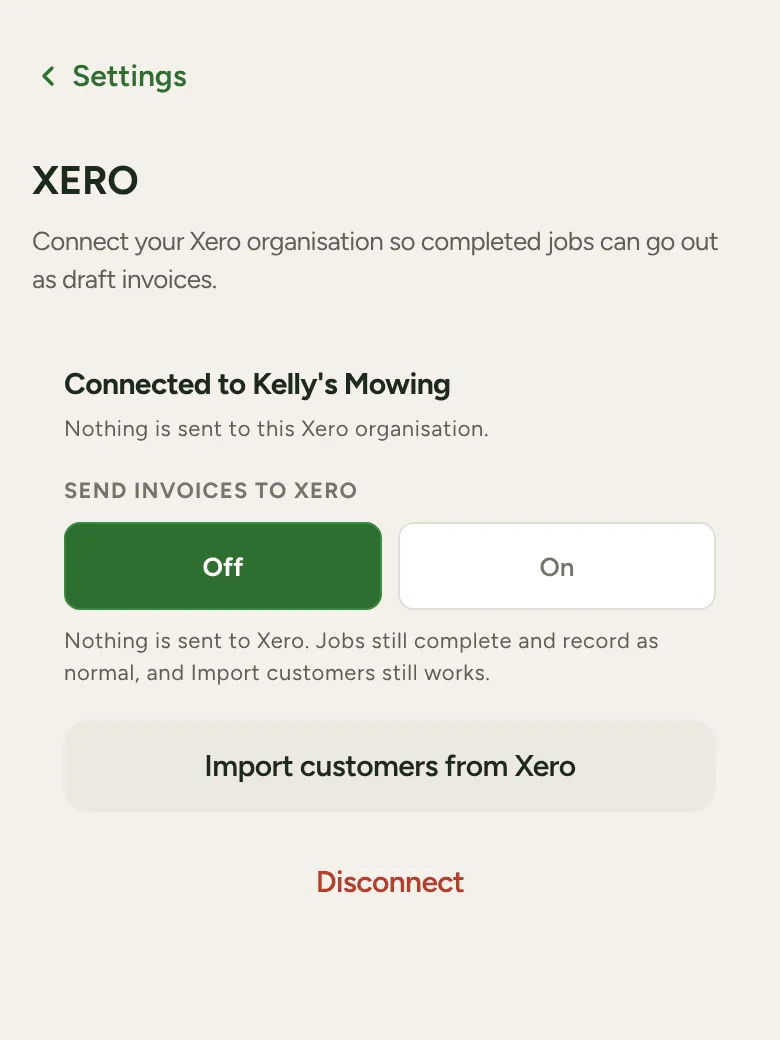
Tap Import customers from Xero. LawnFlow reads your Xero contacts and tells you how many it found.
-
Tap Import all, or Choose which to tick just the ones you want. Contacts you’ve already brought in are skipped, so it’s safe to do this again later.
-
LawnFlow checks every address, the same as a spreadsheet import. Sort out any rows marked yellow or red, then import.
-
Today shows how many customers are waiting for setup. Tap the banner and use Customer Setup to say how often you go, when they’re next due and what you charge.
Does connecting send invoices?
Section titled “Does connecting send invoices?”No, not until you say so. A new connection starts with Send invoices to Xero set to Off. Importing customers works either way. When you’re ready for finished invoice jobs to go to Xero as draft invoices, set up your invoicing rules and turn it On.