
How do I load my customers from a spreadsheet?
Save your customer list as a CSV or Excel file, open Import customers, pick the file, match up the columns, then set each customer up. Each customer needs at least a name, a street address and a suburb.
A list from MYOB, Xero, QuickBooks or your own spreadsheet all work. Phone, email and notes come in too if your file has them. It’s easier on a computer (sign in at app.lawnflow.com.au on your laptop), but it works on an iPhone if the file is in your Files app.
Bring the list in
Section titled “Bring the list in”-
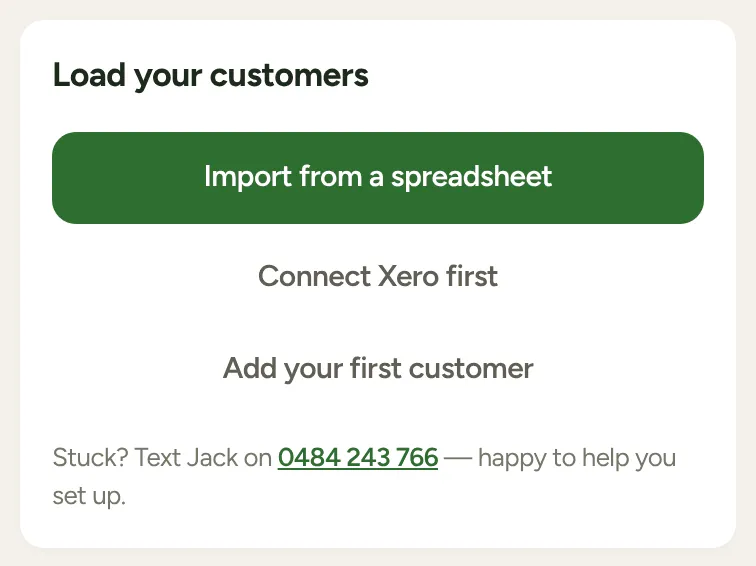
On a brand-new account, tap Import from a spreadsheet on the Load your customers card. Otherwise tap More, then Import customers.
-
Tap Choose a CSV or Excel file and pick your file (.csv, .xlsx or .xls, up to 2 MB).
-
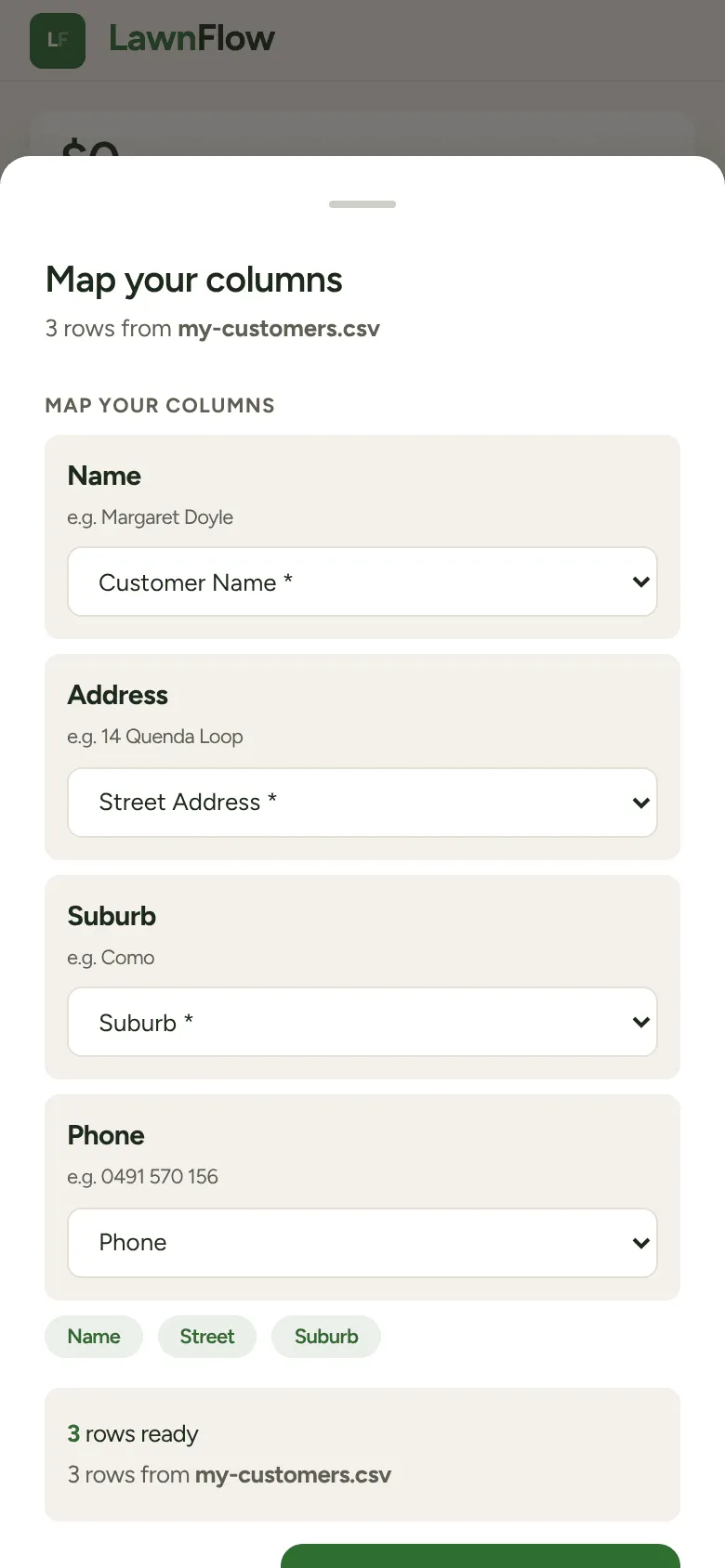
On Map your columns, check each column of your file is matched to the right thing. LawnFlow guesses from your headings. Fix any it got wrong, and set anything you don’t need to “(Ignore)”. Name, Street and Suburb must be matched before you can go on.
-
Tap Next: validate. The Review & resolve screen looks up every address on the map. Rows in green are ready. Rows in yellow or red need a decision first: fix the address, skip the row, or say whether a possible duplicate is the same customer.
-
Tap the import button at the bottom to bring them in.
Set each customer up
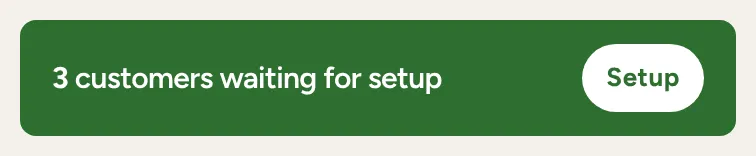
Section titled “Set each customer up”Imported customers don’t go onto your round straight away, because a spreadsheet doesn’t say how often you go or what you charge. Today shows a banner saying how many are waiting for setup. Tap it.
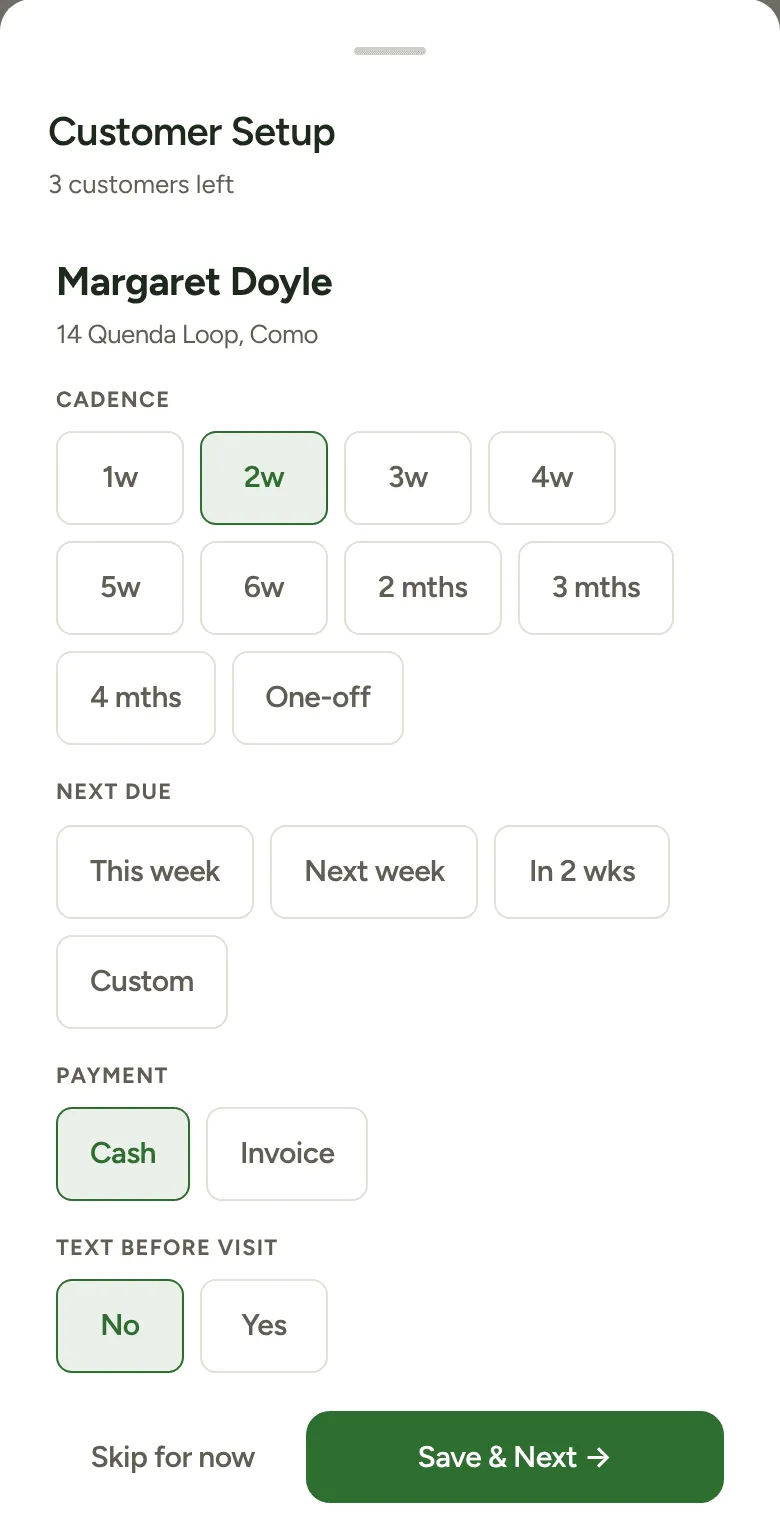
Customer Setup shows one customer at a time. Pick how often you go, when they’re next due, cash or invoice, the service and the price, then tap Save & Next. Not sure about one yet? Tap Skip for now. Someone you don’t mow any more? Tap Put on hold — no upcoming visits. They stay in your book but off the round.
You don’t have to finish in one go. Close it and come back from the banner whenever you like.